> For the complete documentation index, see [llms.txt](https://surftest.gitbook.io/axelar-wiki/llms.txt). Markdown versions of documentation pages are available by appending `.md` to page URLs; this page is available as [Markdown](https://surftest.gitbook.io/axelar-wiki/english/security-setup/2fa-for-ssh.md).
# 2FA for SSH
If you have already set the [login to the server using the SSH key](/axelar-wiki/english/security-setup/ssh-key-login-+-disable-password.md) from the previous step, then this step can be skipped.
But you can also set up additional protection. 2FA are time based passwords. This method is not common, but is [considered](https://www.linode.com/docs/guides/use-one-time-passwords-for-two-factor-authentication-with-ssh-on-ubuntu-16-04-and-debian-8) reliable protection.
### Time zone setting
The default time zone is set to UTC. This can be changed by setting the timezone you live in to use programs that are tied to your local time, and to display server logs in a time that you can understand. To do this, we will execute:
1\. Select from the list and copy the time zone we need. Opening the list:
```
timedatectl list-timezones
```
2\. Now use keyboard arrows `Page Up`, and `Page Down` to view the list. Copy the desired time zone, then to exit the list press `q` (or `ctrl`+`c`) to get out of the list.
3\. Set the time zone (for example, I took `'Etc/GMT+4'`):
```
timedatectl set-timezone 'Etc/GMT+4'
```
### Install Google Authenticator
Enter the command to install Google Authenticator:
```
sudo apt-get install libpam-google-authenticator
```
This program generates keys on the server, and after scanning the qr code, the password for entering on the phone will be displayed.
### Key generation.
{% hint style="warning" %}
Before generating a key, install the [Google Authenticator](https://en.wikipedia.org/wiki/Google_Authenticator) or [Authy](https://www.authy.com/) application on your phone.\
\
And also check that the phone's time zone matches the one set on the server.
{% endhint %}
1\. Enter the key generation command:
```
google-authenticator
```
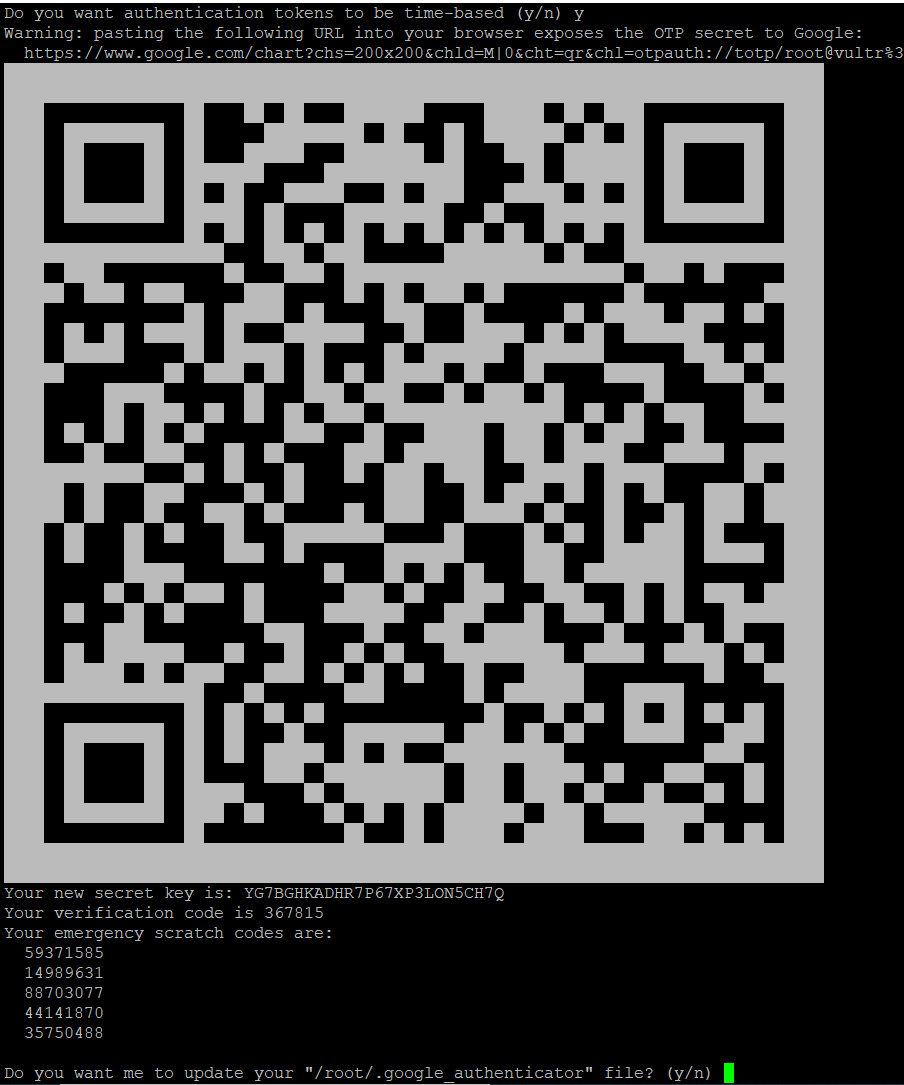
A question will appear. You must select a time-based key by entering `y`.  2\. After that, we get a **QR code**, **secret key** and **emergency scratch codes**. You need to scan the **QR code** using the Google 2FA application, or enter the secret key into the application manually. **Emergency scratch codes** (5 pieces) just save or write down on paper. They are needed in case we lost the phone (they are disposable!).\
  Now we answer the questions:
1\) `Do you want me to update your "/home/exampleuser/.google_authenticator" file (y/n)`\
**Answer** `y`
2\) `Do you want to disallow multiple uses of the same authentication token? This restricts you to one login about every 30s, but it increases your chances to notice or even prevent man-in-the-middle attacks (y/n)`\
**Answer** `y`
3\) `By default, tokens are good for 30 seconds and in order to compensate for possible time-skew between the client and the server, we allow an extra token before and after the current time. If you experience problems with poor time synchronization, you can increase the window from its default size of 1:30min to about 4min. Do you want to do so (y/n)`\
**Answer** `n`
4\) `If the computer that you are logging into isn't hardened against brute-force login attempts, you can enable rate-limiting for the authentication module. By default, this limits attackers to no more than 3 login attempts every 30s. Do you want to enable rate-limiting (y/n)`
**Answer** `y`
### Configuration setup
For google-authenticator to work correctly, we need the [PAM](http://www.linux-pam.org/) ([Pluggable Authentication Modules for Linux](http://www.linux-pam.org/whatispam.html)).
{% hint style="warning" %}
At this step, it's important to open two putty sessions, as we'll soon need to login to the server again to check 2FA. And if we cannot log in to the server via 2FA, then we can solve the problem in the second opened session . Also, the problem can be solved through the console of the provider's personal account.
{% endhint %}
#### Editing the file /etc/pam.d/sshd
Open the file `/etc/pam.d/sshd` :
```
sudo nano /etc/pam.d/sshd
```
Insert lines at the end of the file:
```
auth required pam_unix.so no_warn try_first_pass
auth required pam_google_authenticator.so
```
Where the first line tells PAM to ask for a password first! The second line sets the requirement for additional verification - google\_authenticator.
#### Editing the file /etc/ssh/sshd\_config
In this file, we also need to write an additional verification requirement.
Find the line `ChallengeResponseAuthentication no`. You need to set its value to `yes`:
```
ChallengeResponseAuthentication yes
```
Replace `example-user` with the user you want. Let's say `root`. And paste the changed lines at the end of the file:
```
Match User example-user
AuthenticationMethods keyboard-interactive
```
If you need to enable 2FA for other users - insert the block above for each user (changing the `example-user` variable for each block).
Restart the sshd service and you're done:
```
sudo systemctl restart sshd
```
Now When logging into the server, you will first need to enter a password, and then a two-factor authentication code. 🎉
Now we answer the questions:
1\) `Do you want me to update your "/home/exampleuser/.google_authenticator" file (y/n)`\
**Answer** `y`
2\) `Do you want to disallow multiple uses of the same authentication token? This restricts you to one login about every 30s, but it increases your chances to notice or even prevent man-in-the-middle attacks (y/n)`\
**Answer** `y`
3\) `By default, tokens are good for 30 seconds and in order to compensate for possible time-skew between the client and the server, we allow an extra token before and after the current time. If you experience problems with poor time synchronization, you can increase the window from its default size of 1:30min to about 4min. Do you want to do so (y/n)`\
**Answer** `n`
4\) `If the computer that you are logging into isn't hardened against brute-force login attempts, you can enable rate-limiting for the authentication module. By default, this limits attackers to no more than 3 login attempts every 30s. Do you want to enable rate-limiting (y/n)`
**Answer** `y`
### Configuration setup
For google-authenticator to work correctly, we need the [PAM](http://www.linux-pam.org/) ([Pluggable Authentication Modules for Linux](http://www.linux-pam.org/whatispam.html)).
{% hint style="warning" %}
At this step, it's important to open two putty sessions, as we'll soon need to login to the server again to check 2FA. And if we cannot log in to the server via 2FA, then we can solve the problem in the second opened session . Also, the problem can be solved through the console of the provider's personal account.
{% endhint %}
#### Editing the file /etc/pam.d/sshd
Open the file `/etc/pam.d/sshd` :
```
sudo nano /etc/pam.d/sshd
```
Insert lines at the end of the file:
```
auth required pam_unix.so no_warn try_first_pass
auth required pam_google_authenticator.so
```
Where the first line tells PAM to ask for a password first! The second line sets the requirement for additional verification - google\_authenticator.
#### Editing the file /etc/ssh/sshd\_config
In this file, we also need to write an additional verification requirement.
Find the line `ChallengeResponseAuthentication no`. You need to set its value to `yes`:
```
ChallengeResponseAuthentication yes
```
Replace `example-user` with the user you want. Let's say `root`. And paste the changed lines at the end of the file:
```
Match User example-user
AuthenticationMethods keyboard-interactive
```
If you need to enable 2FA for other users - insert the block above for each user (changing the `example-user` variable for each block).
Restart the sshd service and you're done:
```
sudo systemctl restart sshd
```
Now When logging into the server, you will first need to enter a password, and then a two-factor authentication code. 🎉